August 25, 2026

If your team is still juggling an old on-premises mail server, scattered file shares, and software Microsoft stopped updating years ago, you already know the cost. Files go missing. Logins fail at the worst moment. Staff waste hours working around problems that shouldn’t exist.
Migrating to Microsoft 365 fixes this, but only when it’s planned properly. Done well, your email, files, and everyday tools move into one secure cloud environment with barely a ripple in your day. Done badly, it locks staff out of their inbox on a Monday morning.
At a technical level, it means moving your existing email, files, and business applications into Microsoft’s cloud environment. Exchange handles email, SharePoint and OneDrive handle storage, and Teams handles communication, all inside one connected ecosystem instead of several disconnected tools.
The real work sits in the detail, not the move itself. Permissions need to transfer correctly, and staff need everything to work the same way on day one as it did the day before. That precision is exactly what an experienced Microsoft 365 consultant handles as standard practice.
A few forces are pushing this decision at once. Older on-premises servers are reaching the end of their useful life, and much of the software running alongside them has lost vendor support, or is close to it. Once support ends, so does the security patching that keeps a system safe.
Hybrid work has raised the bar too. Staff working from home or across offices need reliable access to the same files, not a version that only behaves from the office. Layer on growing expectations from clients and insurers around data security, and migration stops looking optional.
The general risk of downtime gets covered plenty elsewhere. What catches most businesses off guard is more specific than that. Shared mailboxes and distribution lists are a common casualty, since they don’t always transfer cleanly and can quietly stop routing mail to the right people. Old file permissions can reset during the move, leaving a manager locked out of a folder they’ve had access to for years.
DNS and mail routing settings need to switch over at exactly the right moment too. Get the timing wrong, and mail can bounce for hours while nobody notices. None of this is hard to avoid, but it needs someone who’s done it before checking for these specific failure points, rather than assuming a general backup covers every angle.
A backup and disaster recovery plan ahead of migration day still matters as a safety net, but the real protection comes from a provider who knows exactly where these smaller issues tend to hide.
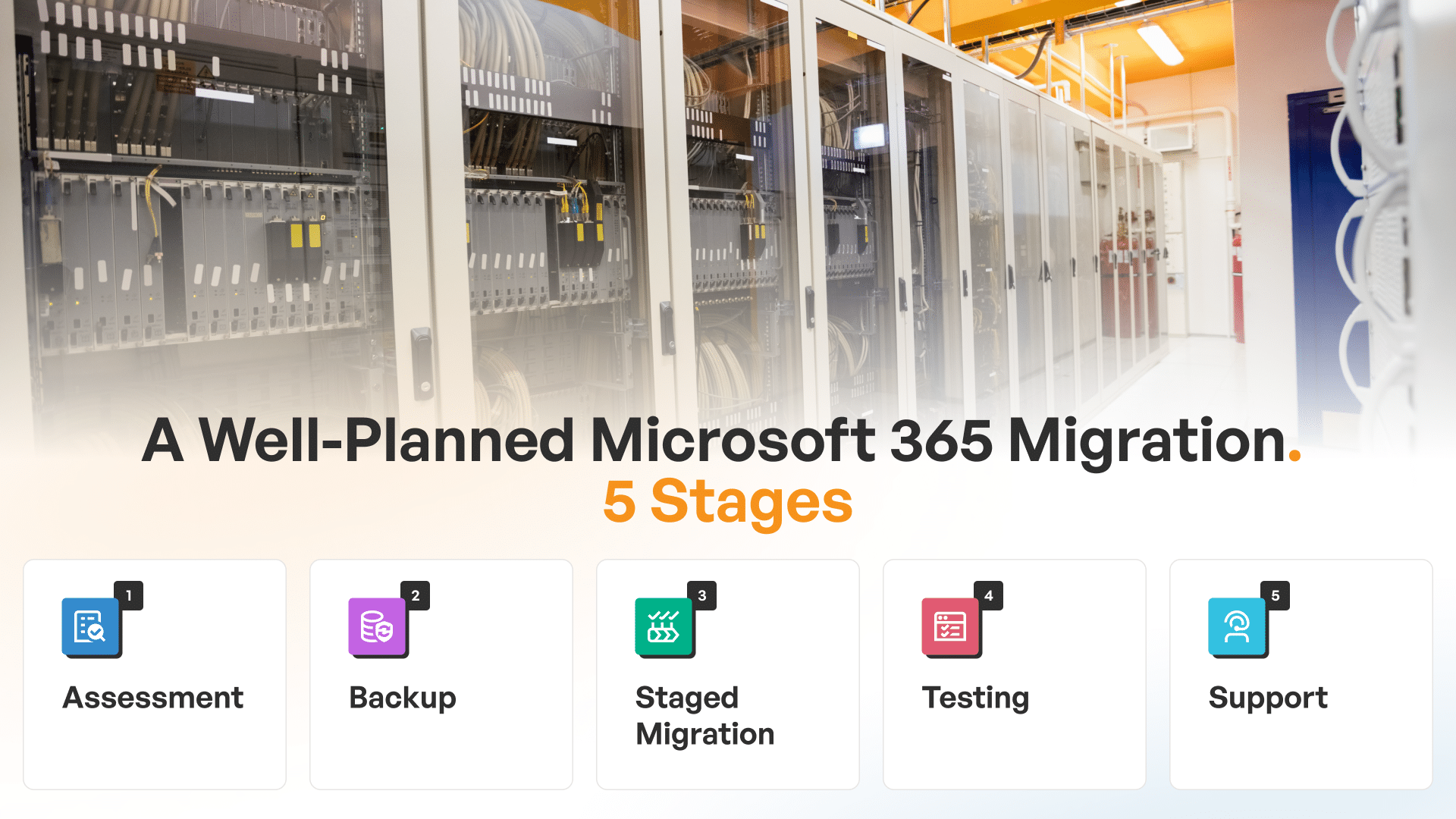
1. Assessment. Current systems, data, and dependencies get mapped out before anything moves.
2. Backup. Everything is backed up and verified, giving you a safety net if a rollback is needed.
3. Staged migration. Data moves across in planned batches, keeping disruption low.
4. Testing. Email, file access, and permissions are checked before staff switch over.
5. Support. Once live, staff get the guidance to work confidently from day one.
This is the structure behind most successful Microsoft 365 rollouts, worth comparing against any provider’s own process.
Rather than a single number, it helps to know what moves the needle. A business with five staff, a handful of mailboxes, and modest file storage can often complete the whole move over a single weekend. Add several file servers, a decade of email history, or specialised software that needs to integrate with the new environment, and the timeline stretches into weeks, staged deliberately rather than rushed.
Three things tend to matter most: how much data needs to move, how many other systems depend on your current setup, and whether the migration needs to happen entirely after hours. A provider who asks about all three before quoting a timeframe is giving you a real answer. One who doesn’t is guessing.
Not every provider approaches migration the same way, and that gap shows up fast once work starts. Ask what their backup process looks like, how thoroughly they test before go-live, and who’s actually available outside normal hours.
At The Owl IT Services, our team handles the full process directly, from assessment through to post-migration support, without handing you off to an offshore call centre partway through.
A Microsoft 365 migration should make your business run smoother, not add stress to your week. With the right planning, backup, and support behind it, moving over happens with barely a hiccup for your team.
If your business is ready to move on from outdated software, get in touch. Our team will walk you through a clear plan built around your business, not a generic checklist.
Contact us today to get started
Usually not. Most laptops and desktops from the last few years run Microsoft 365 without issue, since it’s a cloud subscription rather than software installed locally. Older machines struggling with current Windows updates are the main exception worth flagging early.
A short walkthrough goes a long way. Tools like Outlook and Word feel familiar straight away, but a brief session on Teams, SharePoint, or OneDrive in the first week cuts down on confused support calls later.
No. Most migrations move in stages, shifting data across in planned batches rather than flipping every system over in one go.
Your existing email history carries over into your new mailbox, so nothing gets left behind. This gets tested and confirmed before staff are moved across.
Yes, and for most businesses this is preferred. Running the migration in the evenings or on weekends keeps disruption to a minimum.